> For the complete documentation index, see [llms.txt](https://help.rails.xyz/llms.txt). Markdown versions of documentation pages are available by appending `.md` to page URLs; this page is available as [Markdown](https://help.rails.xyz/manage-account/manage-funds/deposit.md).
# Deposit
{% hint style="info" %}
#### **Before you continue:**
* You must have USDT as collateral (find out how to procure [here](/getting-started/custody-and-collateral.md#procuring-usdt))
* You must have ETH on a supported network for gas and network costs
* Deposits are not supported on mobile.
{% endhint %}
## How to Deposit
{% columns %}
{% column %}
1. Click **Deposit** in the top right corner of your Rails account.
{% endcolumn %}
{% column %}
{% endcolumn %}
{% endcolumns %}
2. If your wallet is not connected, you will be asked to [connect a supported wallet](/manage-account/wallet-connection.md) before you can proceed.
{% columns %}
{% column %}
3\) Use the drop-down to show any available USDT balance, and select the network you wish to deposit from.
{% hint style="warning" %}
You'll need to have both:
* USDT for your deposit
* ETH for gas fees
{% endhint %}
{% endcolumn %}
{% column %}
{% endcolumn %}
{% endcolumns %}
{% columns %}
{% column width="50%" %}
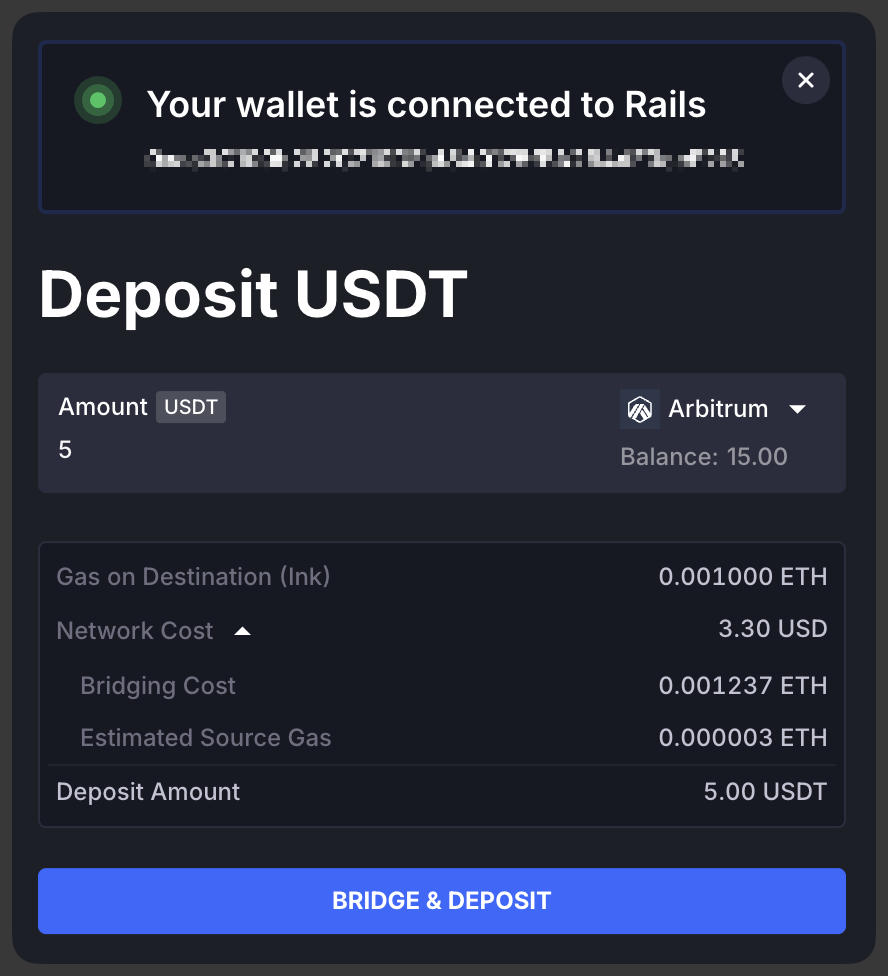
5\. Enter the **Amount** of USDT you wish to deposit and click **Deposit.**
{% endcolumn %}
{% column width="50%" %}
{% endcolumn %}
{% endcolumns %}
{% columns %}
{% column width="50%" %}
6\. Approve the spending cap limit for the bridging transaction if prompted in your wallet.
{% endcolumn %}
{% column width="50%" %}
{% endcolumn %}
{% endcolumns %}
{% columns %}
{% column %}
7\. Approve the bridging transaction as directed in your wallet.
{% hint style="info" %}
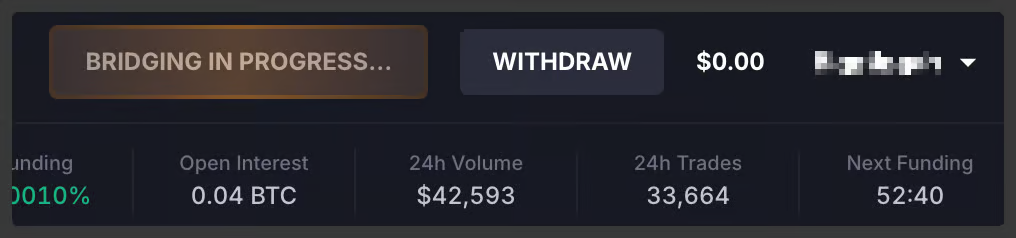
Bridging can take up to 15 minutes depending on which network you are bridging from.\
\
You will see *Bridging in Progress* while the transaction is pending:
\
\
You may close the deposit screen while bridging is in progress.
{% endhint %}
{% endcolumn %}
{% column %}
{% endcolumn %}
{% endcolumns %}
{% columns %}
{% column width="50%" %}
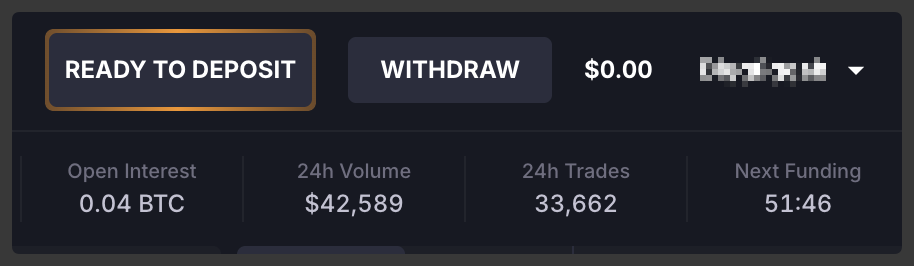
8\. Click **Ready to Deposit** when the transaction is completed.
{% hint style="info" %}
**Note:** If your screen is stuck at ready to deposit, try clearing your browser cache, and then sign out and back in to Rails.
{% endhint %}
{% endcolumn %}
{% column width="50%" %}
{% endcolumn %}
{% endcolumns %}
{% columns %}
{% column %}
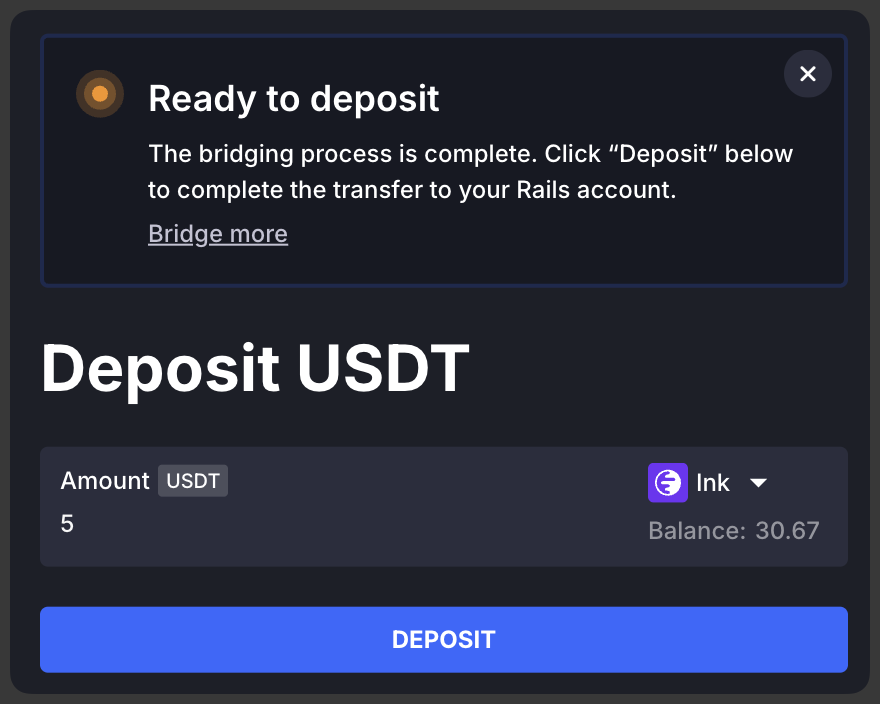
9\. Click **Deposit.**
{% endcolumn %}
{% column %}
{% endcolumn %}
{% endcolumns %}
{% columns %}
{% column %}
10\. Approve the spending cap for the deposit transaction if prompted in your wallet.
{% endcolumn %}
{% column %}
{% endcolumn %}
{% endcolumns %}
{% columns %}
{% column %}
11\. Approve the deposit transaction as directed in your wallet to finalize the deposit request.
{% endcolumn %}
{% column %}
{% endcolumn %}
{% endcolumns %}
{% columns %}
{% column %}
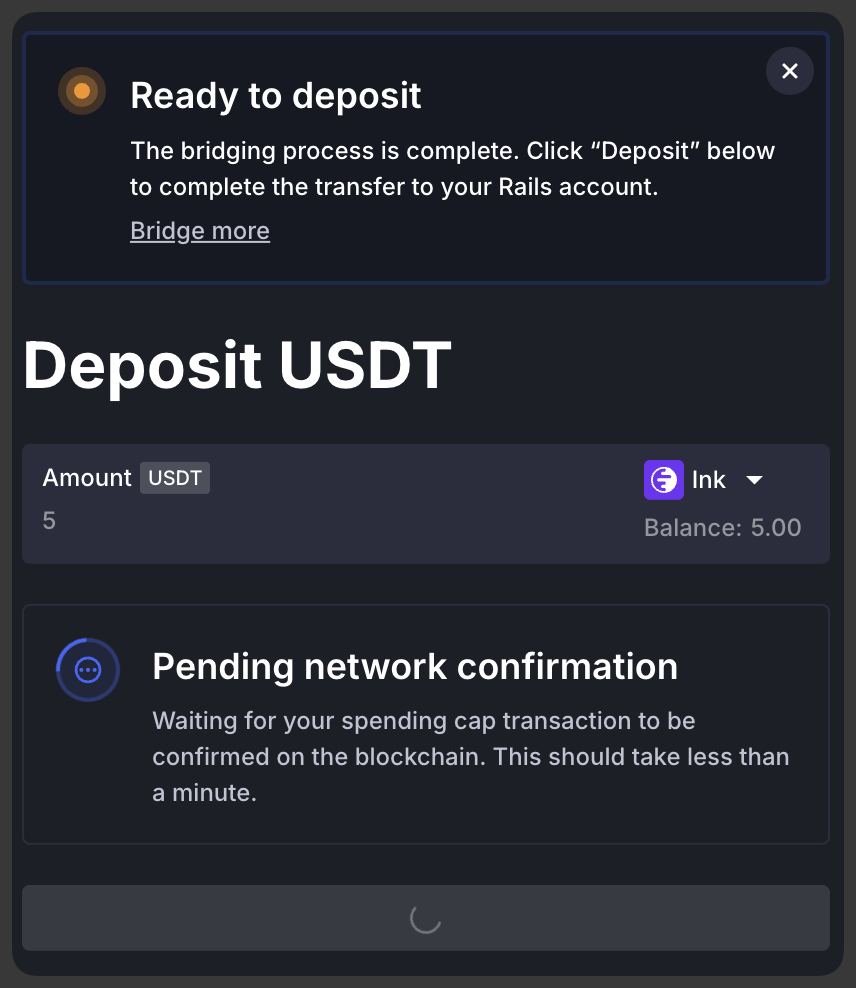
The transaction may take up to 1 minute to post on the blockchain, during which time you'll see a pending network confirmation status.
{% endcolumn %}
{% column %}
{% endcolumn %}
{% endcolumns %}
{% columns %}
{% column %}
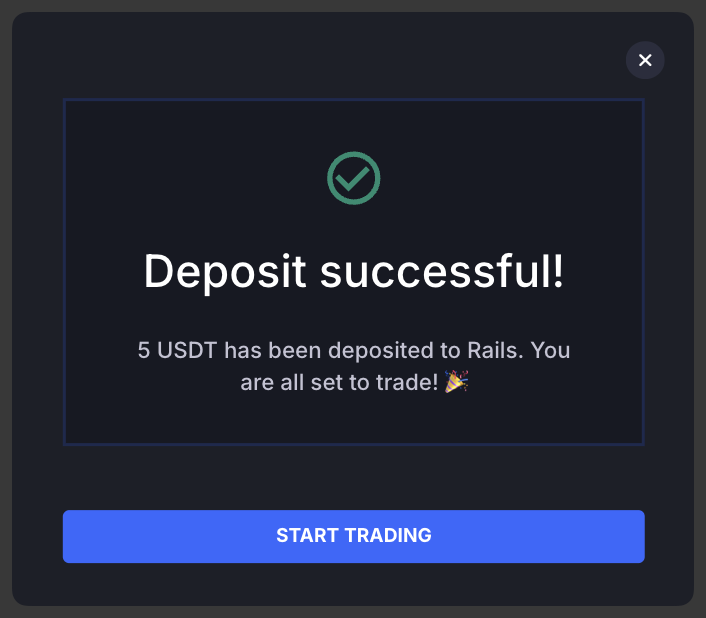
You'll see a deposit notice to let you know when your funds have been successfully deposited.
If you don't see the success screen shown on the right, please check out our [troubleshooting tips](/support/troubleshooting-guide.md#account-funding) and our [FAQs](/support/faqs.md), or contact Support for further assistance.
{% endcolumn %}
{% column %}
{% endcolumn %}
{% endcolumns %}
To view your deposit history, check out the [Historical Summary Tabs](/manage-account/portfolio-statements-and-exports/portfolio-dashboard.md#historical-summary-tabs) in the Portfolio page.
{% hint style="info" %}
**Still need help?** See our [troubleshooting tips](/support/troubleshooting-guide.md#trading).
{% endhint %}



 \
\
You may close the deposit screen while bridging is in progress.
{% endhint %}
{% endcolumn %}
{% column %}
\
\
You may close the deposit screen while bridging is in progress.
{% endhint %}
{% endcolumn %}
{% column %}